Go from a fresh AutoClip installation to your first publish-ready vertical clips in under 5 minutes.
AutoClip is a free, local-first desktop app for macOS and Windows. Follow these steps to connect an AI model, import a video, and export ready-to-post short clips.
1
Install & Launch AutoClip Desktop
Download and install the latest build from GitHub Releases. If you hit a macOS Gatekeeper or Windows SmartScreen prompt on first launch, follow the Desktop Installation guide.
2
Configure Your AI Provider
AutoClip itself is free and open-source. You only need an LLM to analyze transcripts, pick the best moments, and write titles/captions — either a low-cost cloud API (typically $0.02–$0.05 per 1-hour video) or free local Ollama.
OpenAI / DeepSeek / MiniMax / DashScope (Qwen) / OpenRouter: built-in presets ready to go
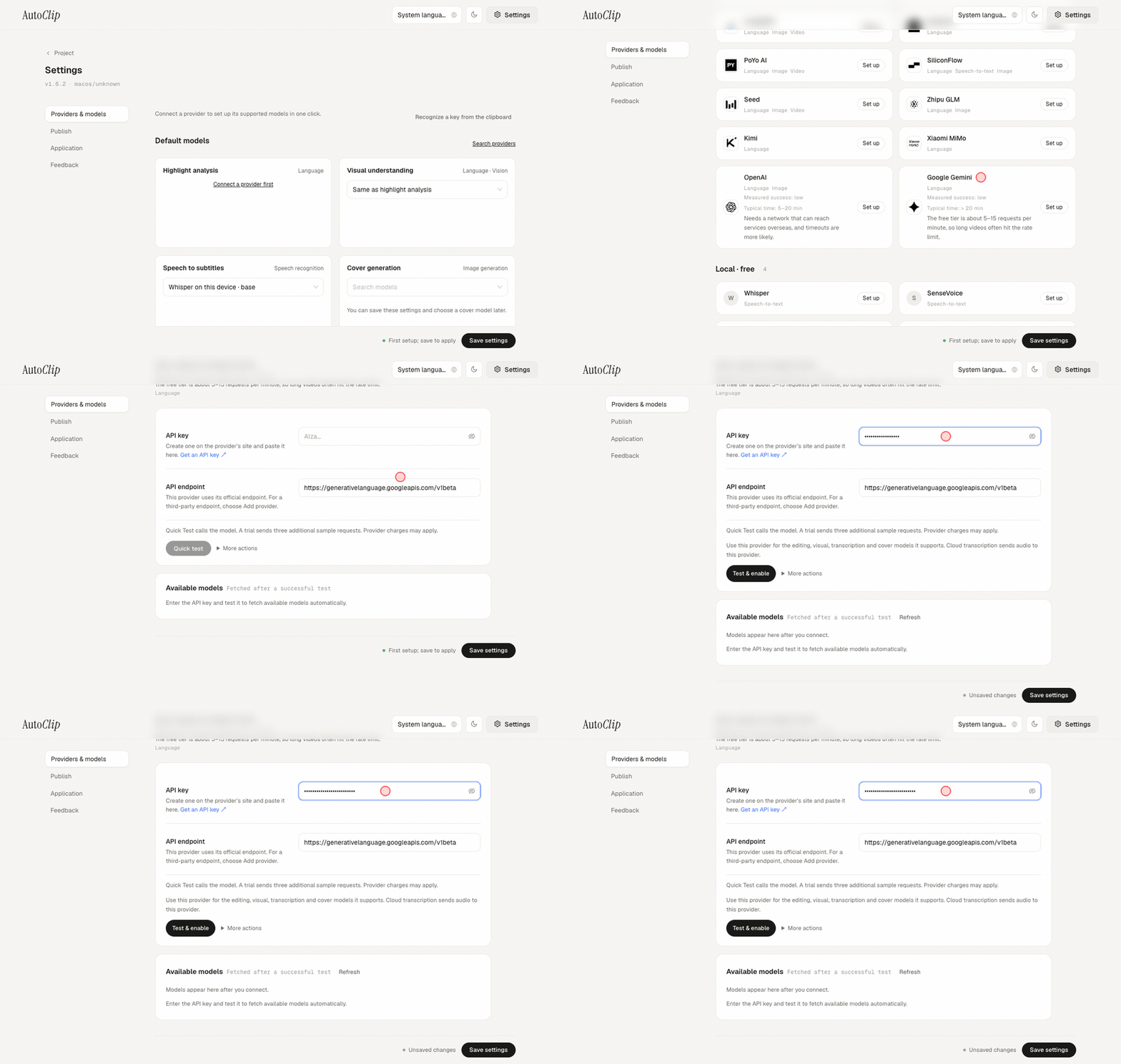
Copy your API key and switch back to AutoClip. AutoClip detects keys in your clipboard and offers a one-click Fill into Provider bar, or open Settings → AI Models, select your provider, paste the key, click Test & Enable, and save.
Step 2: Configure your AI Provider
Want a 100% offline setup with zero API cost? Install Ollama, pull qwen2.5:7b or qwen3.5:9b, and select Ollama in Settings → AI Models. See AI Providers & Local Models for details.
3
Import a Video & Generate Clips
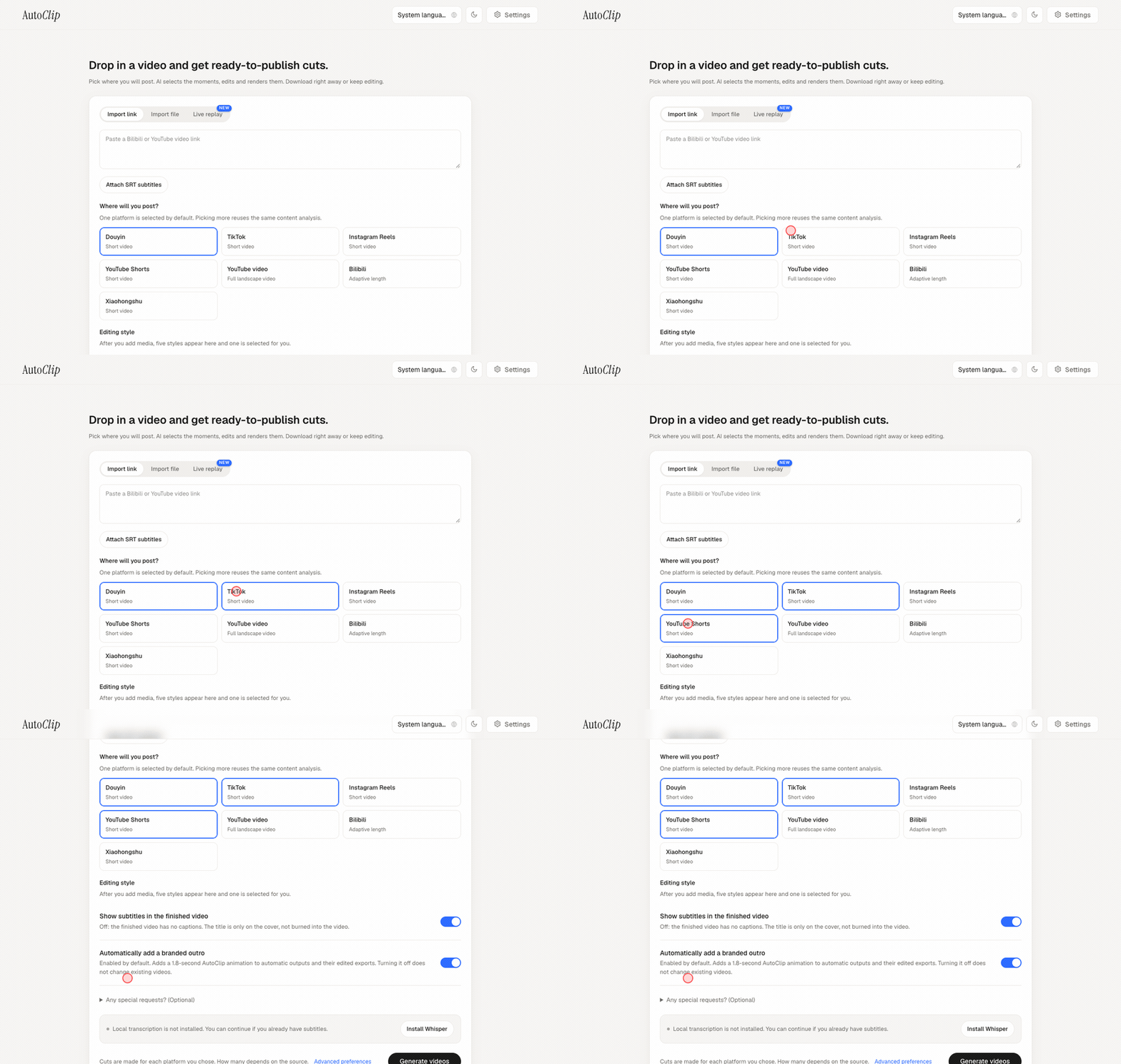
Add footage: Drag a local video (MP4, MOV, MKV) onto the home screen, or paste a YouTube, Bilibili, or Twitch VOD link.
Choose platforms & style: Select target formats such as TikTok / Instagram Reels / YouTube Shorts (9:16) or YouTube Landscape (16:9), pick a visual template, and toggle burned-in captions or covers.
Click Generate: AutoClip transcribes the audio, scores candidate highlights, reframes speakers, renders animated captions, and packages covers and post copy locally.
Step 3: Import & Generate Clips
4
Review Result Cards & Export
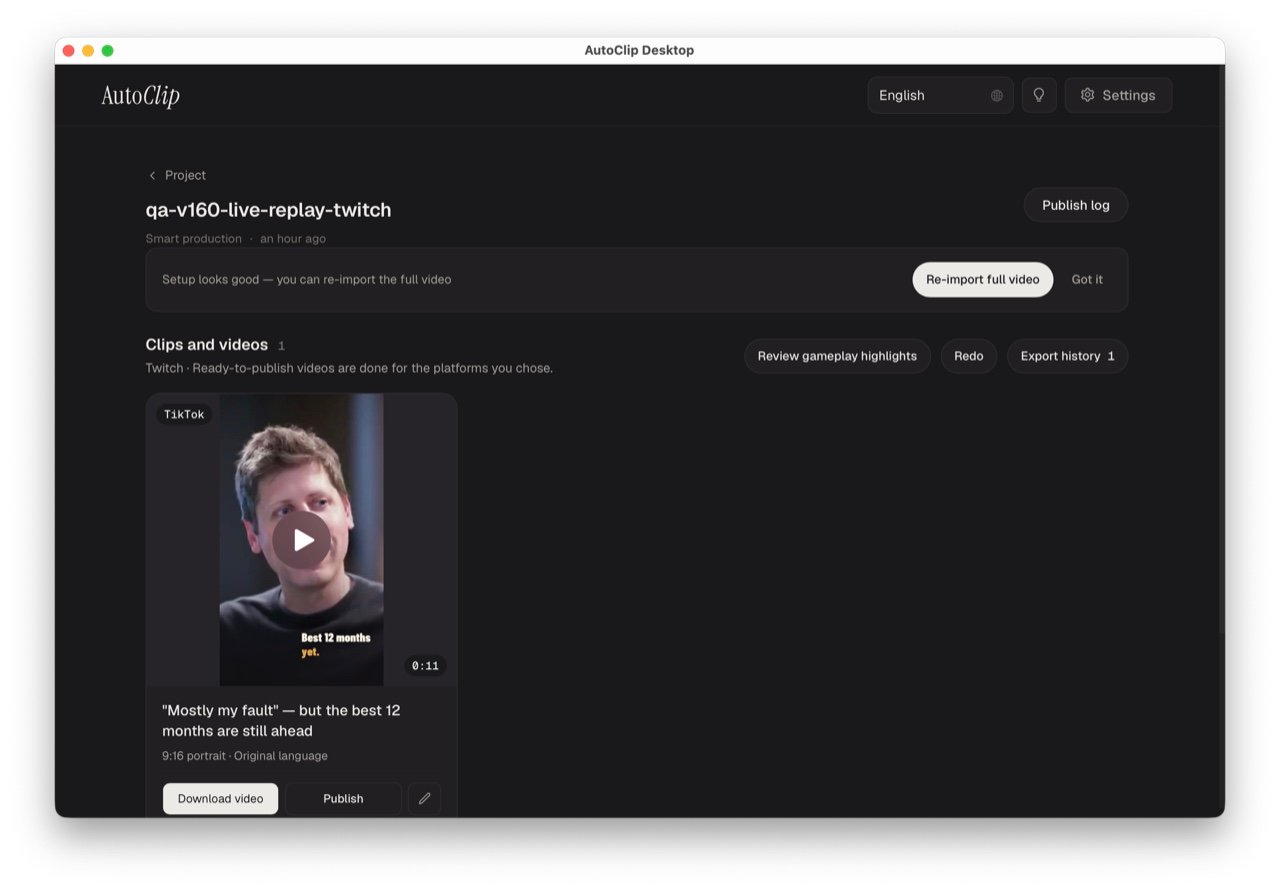
Inspect the generated highlight cards, preview playback, adjust trim points or caption text in Studio if needed, and export your finished clips and ready-to-post kits directly to your output folder.
Generated highlight result card with score, title, and export actions
Video Walkthrough & Sample Output
Watch a real vertical clip produced by AutoClip from a long-form discussion (“Who gets to see your AI chats?”) with automatic framing, animated captions, and editorial packaging:
Sample AutoClip output: 'Who gets to see your AI chats?' (9:16 vertical clip)
Full YouTube Walkthrough: Prefer a narrated video tour? You can embed or swap in the official full YouTube walkthrough video here once published, or follow the step-by-step GIFs above to complete your first run immediately.
Where to Go Next
Podcast & Interview Workflow
Fine-tune multi-speaker framing, bilingual captions, and Studio timelines.
AI Style Cloner & 34+ Templates
Match your channel’s exact visual identity in one click.
{"docsConfig":{"theme":"mint","$schema":"https://mintlify.com/docs.json","name":"AutoClip Docs","colors":{"primary":"#16A34A","light":"#22C55E","dark":"#15803D"},"navbar":{"links":[{"href":"https://autoclip.tv","label":"Website"},{"href":"https://github.com/zhouxiaoka/autoclip","label":"GitHub"}],"primary":{"type":"button","label":"Download","href":"https://autoclip.tv/#download"}},"footer":{"socials":{"github":"https://github.com/zhouxiaoka/autoclip","website":"https://autoclip.tv"}},"styling":{"latex":true},"navigation":{"languages":[{"language":"en","href":"en/introduction"},{"language":"cn","href":"cn/introduction"},{"language":"ja","href":"ja/introduction"},{"language":"ko","href":"ko/introduction"},{"language":"es","href":"es/introduction"},{"language":"pt","href":"pt/introduction"},{"language":"fr","href":"fr/introduction"},{"language":"ru","href":"ru/introduction"}]}},"deployment":{"deploymentMetadataValue":{"subdomain":"auto-clip","hasAudioNarration":false,"actualSubdomain":"auto-clip","customDomains":["docs.autoclip.tv"],"gitSource":{"type":"github","owner":"zhouxiaoka","repo":"autoclip-docs","deployBranch":"main","contentDirectory":"","isPrivate":true,"mountPath":"","label":"","_id":"6b0c0558ec30b88fb970ad28"},"entitlements":{"AI_CHAT":{"status":"ENABLED"},"WEB_MCP":{"status":"ENABLED"},"NARRATION":{"status":"ENABLED"}},"buildId":"6b0c1425c70702786ae4e48d","clientVersion":"0.0.4344","searchFilterCounts":[{"language":"cn","tag":"核心场景教程","count":4},{"language":"en","tag":"Core Workflows","count":4},{"language":"es","tag":"Flujos de trabajo","count":4},{"language":"fr","tag":"Flux de travail","count":4},{"language":"ja","tag":"主要ワークフロー","count":4},{"language":"ko","tag":"핵심 워크플로우","count":4},{"language":"pt","tag":"Fluxos de trabalho","count":4},{"language":"ru","tag":"Основные сценарии","count":4},{"language":"cn","tag":"开发者与常见问题","count":3},{"language":"cn","tag":"快速上手","count":3},{"language":"en","tag":"Developers \u0026 Support","count":3},{"language":"en","tag":"Get Started","count":3},{"language":"es","tag":"Desarrolladores y FAQ","count":3},{"language":"es","tag":"Primeros pasos","count":3},{"language":"fr","tag":"Développeurs et FAQ","count":3},{"language":"fr","tag":"Démarrage","count":3},{"language":"ja","tag":"開発者・FAQ","count":3},{"language":"ja","tag":"はじめに","count":3},{"language":"ko","tag":"개발자 및 FAQ","count":3},{"language":"ko","tag":"시작하기","count":3},{"language":"pt","tag":"Desenvolvedores e FAQ","count":3},{"language":"pt","tag":"Primeiros passos","count":3},{"language":"ru","tag":"Разработчикам и FAQ","count":3},{"language":"ru","tag":"Начало работы","count":3},{"language":"cn","tag":"模型与算力","count":1},{"language":"en","tag":"AI Models \u0026 Providers","count":1},{"language":"es","tag":"Modelos y proveedores IA","count":1},{"language":"fr","tag":"Modèles et fournisseurs IA","count":1},{"language":"ja","tag":"AIモデル・プロバイダー","count":1},{"language":"ko","tag":"AI 모델 및 공급자","count":1},{"language":"pt","tag":"Modelos e provedores IA","count":1},{"language":"ru","tag":"ИИ-модели и провайдеры","count":1}]},"assistantConfig":{"enableAskAiButton":false,"enableStarterQuestions":false,"enableContextualStarterQuestions":false,"enableAskAiSearchBar":true},"basePath":"","hasChatPermissions":true,"hasWebMcpPermissions":true,"toggles":[{"name":"kill-isr","enabled":true,"variant":{"name":"disabled","enabled":false,"feature_enabled":true},"impressionData":false},{"name":"custom-rbac-roles","enabled":true,"variant":{"name":"disabled","enabled":false,"feature_enabled":true},"impressionData":false},{"name":"agent-mintlify-slack","enabled":true,"variant":{"name":"disabled","enabled":false,"feature_enabled":true},"impressionData":false},{"name":"agent-integrations-settings","enabled":true,"variant":{"name":"disabled","enabled":false,"feature_enabled":true},"impressionData":false},{"name":"rbac-expansion","enabled":true,"variant":{"name":"disabled","enabled":false,"feature_enabled":true},"impressionData":false},{"name":"automations-pr-grouping","enabled":true,"variant":{"name":"disabled","enabled":false,"feature_enabled":true},"impressionData":false},{"name":"custom-prefix","enabled":true,"variant":{"name":"disabled","enabled":false,"feature_enabled":true},"impressionData":false},{"name":"analytics-v7","enabled":true,"variant":{"name":"disabled","enabled":false,"feature_enabled":true},"impressionData":false},{"name":"user-flows-analytics","enabled":true,"variant":{"name":"disabled","enabled":false,"feature_enabled":true},"impressionData":false},{"name":"no-publish-flow","enabled":true,"variant":{"name":"disabled","enabled":false,"feature_enabled":true},"impressionData":false},{"name":"snapshot-serving-live","enabled":true,"variant":{"name":"disabled","enabled":false,"feature_enabled":true},"impressionData":false},{"name":"stripTemperatureMiddleware","enabled":true,"variant":{"name":"disabled","enabled":false,"feature_enabled":true},"impressionData":false},{"name":"support-platform-pylon-zendesk","enabled":true,"variant":{"name":"disabled","enabled":false,"feature_enabled":true},"impressionData":false},{"name":"snapshot-serving","enabled":true,"variant":{"name":"disabled","enabled":false,"feature_enabled":true},"impressionData":false},{"name":"instant-rollback","enabled":true,"variant":{"name":"disabled","enabled":false,"feature_enabled":true},"impressionData":false},{"name":"granular-notifications-server","enabled":true,"variant":{"name":"disabled","enabled":false,"feature_enabled":true},"impressionData":false},{"name":"granular-notifications","enabled":true,"variant":{"name":"disabled","enabled":false,"feature_enabled":true},"impressionData":false},{"name":"automations-fable","enabled":true,"variant":{"name":"disabled","enabled":false,"feature_enabled":true},"impressionData":false},{"name":"fixed-ai-action-pricing","enabled":true,"variant":{"name":"disabled","enabled":false,"feature_enabled":true},"impressionData":false},{"name":"site-roles","enabled":true,"variant":{"name":"disabled","enabled":false,"feature_enabled":true},"impressionData":false},{"name":"automation-resolve-merge-conflict","enabled":true,"variant":{"name":"disabled","enabled":false,"feature_enabled":true},"impressionData":false},{"name":"scoped-publishing","enabled":true,"variant":{"name":"disabled","enabled":false,"feature_enabled":true},"impressionData":false},{"name":"mintql","enabled":true,"variant":{"name":"disabled","enabled":false,"feature_enabled":true},"impressionData":false},{"name":"page-level-analytics","enabled":true,"variant":{"name":"disabled","enabled":false,"feature_enabled":true},"impressionData":false},{"name":"editor-version-history-v2","enabled":true,"variant":{"name":"disabled","enabled":false,"feature_enabled":true},"impressionData":false},{"name":"billing-page-v2","enabled":true,"variant":{"name":"disabled","enabled":false,"feature_enabled":true},"impressionData":false},{"name":"full-page-search","enabled":true,"variant":{"name":"disabled","enabled":false,"feature_enabled":true},"impressionData":false},{"name":"workspace-projects","enabled":true,"variant":{"name":"disabled","enabled":false,"feature_enabled":true},"impressionData":false},{"name":"fork-pr-previews","enabled":true,"variant":{"name":"disabled","enabled":false,"feature_enabled":true},"impressionData":false},{"name":"revalidation-jwt","enabled":true,"variant":{"name":"disabled","enabled":false,"feature_enabled":true},"impressionData":false},{"name":"hobby-abuse-scan","enabled":true,"variant":{"name":"disabled","enabled":false,"feature_enabled":true},"impressionData":false},{"name":"dashboard-inbox","enabled":true,"variant":{"name":"disabled","enabled":false,"feature_enabled":true},"impressionData":false},{"name":"turbopuffer-dual-write","enabled":true,"variant":{"name":"disabled","enabled":false,"feature_enabled":true},"impressionData":false},{"name":"approve-review-flow","enabled":true,"variant":{"name":"disabled","enabled":false,"feature_enabled":true},"impressionData":false},{"name":"editor-metadata","enabled":true,"variant":{"name":"disabled","enabled":false,"feature_enabled":true},"impressionData":false},{"name":"turbopuffer-serve","enabled":true,"variant":{"name":"disabled","enabled":false,"feature_enabled":true},"impressionData":false},{"name":"live-agents","enabled":true,"variant":{"name":"disabled","enabled":false,"feature_enabled":true},"impressionData":false},{"name":"starter-pricing","enabled":true,"variant":{"name":"treatment","enabled":true,"payload":{"type":"string","value":"treatment"},"feature_enabled":true},"impressionData":false},{"name":"llms-txt-v2","enabled":true,"variant":{"name":"disabled","enabled":false,"feature_enabled":true},"impressionData":false},{"name":"wildcard-email-auth","enabled":true,"variant":{"name":"disabled","enabled":false,"feature_enabled":true},"impressionData":false}],"starterQuestions":[],"googleFontsInlined":false},"customCss":[]}
{"page":{"pagePath":"en/quickstart","slug":"/en/quickstart","pageMetadata":{"title":"First Clip in 5 Minutes","description":"Go from a fresh AutoClip installation to your first publish-ready vertical clips in under 5 minutes.","href":"/en/quickstart"},"description":{"compiledSource":"\"use strict\";\nconst {jsx: _jsx} = arguments[0];\nconst {useMDXComponents: _provideComponents} = arguments[0];\nfunction _createMdxContent(props) {\n const _components = {\n p: \"p\",\n ..._provideComponents(),\n ...props.components\n };\n return _jsx(_components.p, {\n children: \"Go from a fresh AutoClip installation to your first publish-ready vertical clips in under 5 minutes.\"\n });\n}\nfunction MDXContent(props = {}) {\n const {wrapper: MDXLayout} = {\n ..._provideComponents(),\n ...props.components\n };\n return MDXLayout ? _jsx(MDXLayout, {\n ...props,\n children: _jsx(_createMdxContent, {\n ...props\n })\n }) : _createMdxContent(props);\n}\nreturn {\n default: MDXContent\n};\n","frontmatter":{},"scope":{}},"pageType":"default","mdx":{"mdxSource":{"compiledSource":"\"use strict\";const{Fragment:_Fragment,jsx:_jsx,jsxs:_jsxs}=arguments[0];const{useMDXComponents:_provideComponents}=arguments[0];function _createMdxContent(props){const _components={a:`a`,code:`code`,em:`em`,li:`li`,ol:`ol`,p:`p`,strong:`strong`,ul:`ul`,..._provideComponents(),...props.components},{Card,CardGroup,Frame,Heading,Note,OptimizedImage,Step,Steps,Tip}=_components;if(!Card)_missingMdxReference(`Card`,true);if(!CardGroup)_missingMdxReference(`CardGroup`,true);if(!Frame)_missingMdxReference(`Frame`,true);if(!Heading)_missingMdxReference(`Heading`,true);if(!Note)_missingMdxReference(`Note`,true);if(!OptimizedImage)_missingMdxReference(`OptimizedImage`,true);if(!Step)_missingMdxReference(`Step`,true);if(!Steps)_missingMdxReference(`Steps`,true);if(!Tip)_missingMdxReference(`Tip`,true);return _jsxs(_Fragment,{children:[_jsxs(_components.p,{children:[`AutoClip is a `,_jsx(_components.strong,{children:`free, local-first desktop app`}),` for macOS and Windows. Follow these steps to connect an AI model, import a video, and export ready-to-post short clips.`]}),`\n`,_jsxs(Steps,{children:[_jsx(Step,{title:`Install \u0026 Launch AutoClip Desktop`,children:_jsxs(_components.p,{children:[`Download and install the latest build from `,_jsx(_components.a,{href:`https://autoclip.tv/en/#download`,children:`GitHub Releases`}),`. If you hit a macOS Gatekeeper or Windows SmartScreen prompt on first launch, follow the `,_jsx(_components.a,{href:`/en/installation`,children:`Desktop Installation guide`}),`.`]})}),_jsxs(Step,{title:`Configure Your AI Provider`,children:[_jsxs(_components.p,{children:[`AutoClip itself is free and open-source. You only need an LLM to analyze transcripts, pick the best moments, and write titles/captions — either a low-cost cloud API (typically $0.02–$0.05 per 1-hour video) or `,_jsx(_components.strong,{children:`free local Ollama`}),`.`]}),_jsxs(_components.ol,{children:[`\n`,_jsxs(_components.li,{children:[`Create an API key from any supported provider:`,`\n`,_jsxs(_components.ul,{children:[`\n`,_jsxs(_components.li,{children:[_jsx(_components.strong,{children:`Google Gemini`}),`: `,_jsx(_components.a,{href:`https://aistudio.google.com/apikey`,children:`aistudio.google.com/apikey`}),` (free tier available)`]}),`\n`,_jsxs(_components.li,{children:[_jsx(_components.strong,{children:`OpenAI / DeepSeek / MiniMax / DashScope (Qwen) / OpenRouter`}),`: built-in presets ready to go`]}),`\n`]}),`\n`]}),`\n`,_jsxs(_components.li,{children:[`Copy your API key and switch back to AutoClip. AutoClip detects keys in your clipboard and offers a one-click `,_jsx(_components.strong,{children:`Fill into Provider`}),` bar, or open `,_jsx(_components.strong,{children:`Settings → AI Models`}),`, select your provider, paste the key, click `,_jsx(_components.strong,{children:`Test \u0026 Enable`}),`, and save.`]}),`\n`]}),_jsx(Frame,{caption:`Step 2: Configure your AI Provider`,children:_jsx(OptimizedImage,{src:`https://mintcdn.com/auto-clip/mqMkpyKoj_HdWISu/images/quickstart/step2-api-setup-en.gif?s=99b3b893f595843eb6c0f87ce9a60dad`,alt:`API setup`,\"data-og-width\":`960`,width:`960`,\"data-og-height\":`608`,height:`608`,\"data-path\":`images/quickstart/step2-api-setup-en.gif`,\"data-optimize\":`true`,\"data-opv\":`3`})}),_jsx(Tip,{children:_jsxs(_components.p,{children:[`Want a 100% offline setup with zero API cost? Install `,_jsx(_components.a,{href:`https://ollama.com/`,children:`Ollama`}),`, pull `,_jsx(_components.code,{children:`qwen2.5:7b`}),` or `,_jsx(_components.code,{children:`qwen3.5:9b`}),`, and select `,_jsx(_components.strong,{children:`Ollama`}),` in `,_jsx(_components.strong,{children:`Settings → AI Models`}),`. See `,_jsx(_components.a,{href:`/en/providers`,children:`AI Providers \u0026 Local Models`}),` for details.`]})})]}),_jsxs(Step,{title:`Import a Video \u0026 Generate Clips`,children:[_jsxs(_components.ol,{children:[`\n`,_jsxs(_components.li,{children:[_jsx(_components.strong,{children:`Add footage`}),`: Drag a local video (`,_jsx(_components.code,{children:`MP4`}),`, `,_jsx(_components.code,{children:`MOV`}),`, `,_jsx(_components.code,{children:`MKV`}),`) onto the home screen, or paste a `,_jsx(_components.strong,{children:`YouTube, Bilibili, or Twitch VOD`}),` link.`]}),`\n`,_jsxs(_components.li,{children:[_jsx(_components.strong,{children:`Choose platforms \u0026 style`}),`: Select target formats such as `,_jsx(_components.strong,{children:`TikTok / Instagram Reels / YouTube Shorts (9:16)`}),` or `,_jsx(_components.strong,{children:`YouTube Landscape (16:9)`}),`, pick a visual template, and toggle burned-in captions or covers.`]}),`\n`,_jsxs(_components.li,{children:[_jsx(_components.strong,{children:`Click Generate`}),`: AutoClip transcribes the audio, scores candidate highlights, reframes speakers, renders animated captions, and packages covers and post copy locally.`]}),`\n`]}),_jsx(Frame,{caption:`Step 3: Import \u0026 Generate Clips`,children:_jsx(OptimizedImage,{src:`https://mintcdn.com/auto-clip/mqMkpyKoj_HdWISu/images/quickstart/step3-import-output-en.gif?s=0d09446295b36be2ab9780aef704fbfc`,alt:`Import and output`,\"data-og-width\":`960`,width:`960`,\"data-og-height\":`608`,height:`608`,\"data-path\":`images/quickstart/step3-import-output-en.gif`,\"data-optimize\":`true`,\"data-opv\":`3`})})]}),_jsxs(Step,{title:`Review Result Cards \u0026 Export`,children:[_jsx(_components.p,{children:`Inspect the generated highlight cards, preview playback, adjust trim points or caption text in Studio if needed, and export your finished clips and ready-to-post kits directly to your output folder.`}),_jsx(Frame,{caption:`Generated highlight result card with score, title, and export actions`,children:_jsx(OptimizedImage,{src:`https://mintcdn.com/auto-clip/mqMkpyKoj_HdWISu/images/v1.6/en-05-result-card.jpg?fit=max\u0026auto=format\u0026n=mqMkpyKoj_HdWISu\u0026q=85\u0026s=45b6cf3bbc96abacef5dc503b3237dc0`,alt:`Generated highlight result card`,\"data-og-width\":`1280`,width:`1280`,\"data-og-height\":`890`,height:`890`,\"data-path\":`images/v1.6/en-05-result-card.jpg`,\"data-optimize\":`true`,\"data-opv\":`3`,srcset:`https://mintcdn.com/auto-clip/mqMkpyKoj_HdWISu/images/v1.6/en-05-result-card.jpg?w=280\u0026fit=max\u0026auto=format\u0026n=mqMkpyKoj_HdWISu\u0026q=85\u0026s=a9f891cfe46bafc17d5da3fd7665399e 280w, https://mintcdn.com/auto-clip/mqMkpyKoj_HdWISu/images/v1.6/en-05-result-card.jpg?w=560\u0026fit=max\u0026auto=format\u0026n=mqMkpyKoj_HdWISu\u0026q=85\u0026s=075708c8db72948838e64b133e84f33f 560w, https://mintcdn.com/auto-clip/mqMkpyKoj_HdWISu/images/v1.6/en-05-result-card.jpg?w=840\u0026fit=max\u0026auto=format\u0026n=mqMkpyKoj_HdWISu\u0026q=85\u0026s=8ceed4b1ab0c845fbd4d6ed268046813 840w, https://mintcdn.com/auto-clip/mqMkpyKoj_HdWISu/images/v1.6/en-05-result-card.jpg?w=1100\u0026fit=max\u0026auto=format\u0026n=mqMkpyKoj_HdWISu\u0026q=85\u0026s=6e1b083912d8ce08eb790727d5a5442f 1100w, https://mintcdn.com/auto-clip/mqMkpyKoj_HdWISu/images/v1.6/en-05-result-card.jpg?w=1650\u0026fit=max\u0026auto=format\u0026n=mqMkpyKoj_HdWISu\u0026q=85\u0026s=1e2f762078c0d35533c0af31fc32fbb1 1650w, https://mintcdn.com/auto-clip/mqMkpyKoj_HdWISu/images/v1.6/en-05-result-card.jpg?w=2500\u0026fit=max\u0026auto=format\u0026n=mqMkpyKoj_HdWISu\u0026q=85\u0026s=024a5ebf4bc0b04d6a06f9efa60a5b15 2500w`})})]})]}),`\n`,_jsx(Heading,{level:`2`,id:`video-walkthrough-\u0026-sample-output`,children:`Video Walkthrough \u0026 Sample Output`}),`\n`,_jsxs(_components.p,{children:[`Watch a real vertical clip produced by AutoClip from a long-form discussion (`,_jsx(_components.em,{children:`“Who gets to see your AI chats?”`}),`) with automatic framing, animated captions, and editorial packaging:`]}),`\n`,_jsx(Frame,{caption:`Sample AutoClip output: 'Who gets to see your AI chats?' (9:16 vertical clip)`,children:_jsx(`video`,{controls:true,playsInline:true,preload:`metadata`,className:`mint-w-full mint-rounded-xl`,poster:`https://autoclip.tv/assets/showcase/poster-11-en-v1.jpg`,src:`https://autoclip.tv/assets/showcase/clip-11.mp4`})}),`\n`,_jsx(Note,{children:_jsxs(_components.p,{children:[_jsx(_components.strong,{children:`Full YouTube Walkthrough:`}),` Prefer a narrated video tour? You can embed or swap in the official full YouTube walkthrough video here once published, or follow the step-by-step GIFs above to complete your first run immediately.`]})}),`\n`,_jsx(Heading,{level:`2`,id:`where-to-go-next`,children:`Where to Go Next`}),`\n`,_jsxs(CardGroup,{cols:2,children:[_jsx(Card,{title:`Podcast \u0026 Interview Workflow`,icon:`microphone`,href:`/en/workflows/podcast`,children:_jsx(_components.p,{children:`Fine-tune multi-speaker framing, bilingual captions, and Studio timelines.`})}),_jsx(Card,{title:`AI Style Cloner \u0026 34+ Templates`,icon:`wand-magic-sparkles`,href:`/en/workflows/style-cloner`,children:_jsx(_components.p,{children:`Match your channel’s exact visual identity in one click.`})})]})]})}function MDXContent(props={}){const{wrapper:MDXLayout}={..._provideComponents(),...props.components};return MDXLayout?_jsx(MDXLayout,{...props,children:_jsx(_createMdxContent,{...props})}):_createMdxContent(props)}return{default:MDXContent};function _missingMdxReference(id,component){throw new Error(`Expected `+(component?`component`:`object`)+\" `\"+id+\"` to be defined: you likely forgot to import, pass, or provide it.\")}","frontmatter":{},"scope":{"config":{},"pageMetadata":{"title":"First Clip in 5 Minutes","description":"Go from a fresh AutoClip installation to your first publish-ready vertical clips in under 5 minutes.","href":"/en/quickstart"}}},"mdxSourceWithNoJs":null},"mdxExtracts":{"tableOfContents":[{"title":"Video Walkthrough \u0026 Sample Output","slug":"video-walkthrough-\u0026-sample-output","depth":2,"children":[]},{"title":"Where to Go Next","slug":"where-to-go-next","depth":2,"children":[]}],"codeExamples":{}},"jsLinks":[],"dynamicCss":".mint-w-full {\n width: 100%\n}\n.mint-rounded-xl {\n border-radius: 0.75rem\n}","subdomain":"auto-clip","siteName":"AutoClip Docs","title":"First Clip in 5 Minutes - AutoClip Docs","contextualStarterQuestions":[],"navMaps":{"firstHrefInVersion":{},"firstHrefInLanguage":{"en":{"href":"/en/quickstart","matchLevel":0},"cn":{"href":"/cn/quickstart","matchLevel":1},"ja":{"href":"/ja/quickstart","matchLevel":1},"ko":{"href":"/ko/quickstart","matchLevel":1},"es":{"href":"/es/quickstart","matchLevel":1},"pt":{"href":"/pt/quickstart","matchLevel":1},"fr":{"href":"/fr/quickstart","matchLevel":1},"ru":{"href":"/ru/quickstart","matchLevel":1}}},"lastModified":"2026-11-29T12:01:44.177Z","originalFileLocation":"en/quickstart.mdx","locale":"en"},"headHtml":"\u003cscript data-mint-head>(function(){var d=document.documentElement,p=null;if(!p){try{p=localStorage.getItem(\"isDarkMode\")}catch(e){}if(p==='true')p='dark';else if(p==='false')p='light';if(p!=='light'\u0026\u0026p!=='dark'\u0026\u0026p!=='system')p=\"system\"}var r=p==='system'?(matchMedia(\"(prefers-color-scheme: dark)\").matches?'dark':'light'):p;d.classList.remove(r==='dark'?'light':'dark');d.classList.add(r);d.setAttribute(\"data-theme-preference\",p)})();\u003c/script>\u003cmeta data-mint-head name=\"description\" content=\"Go from a fresh AutoClip installation to your first publish-ready vertical clips in under 5 minutes.\">\u003cmeta data-mint-head name=\"application-name\" content=\"AutoClip Docs\">\u003cmeta data-mint-head name=\"generator\" content=\"Mintlify\">\u003clink data-mint-head rel=\"apple-touch-icon\" type=\"image/png\" sizes=\"180x180\" href=\"https://mintlify.s3.us-west-1.amazonaws.com/auto-clip/_generated/favicon/apple-touch-icon.png?v=3\">\u003clink data-mint-head rel=\"icon\" type=\"image/png\" sizes=\"32x32\" href=\"https://mintlify.s3.us-west-1.amazonaws.com/auto-clip/_generated/favicon/favicon-32x32.png?v=3\">\u003clink data-mint-head rel=\"icon\" type=\"image/png\" sizes=\"16x16\" href=\"https://mintlify.s3.us-west-1.amazonaws.com/auto-clip/_generated/favicon/favicon-16x16.png?v=3\">\u003clink data-mint-head rel=\"shortcut icon\" type=\"image/x-icon\" href=\"https://mintlify.s3.us-west-1.amazonaws.com/auto-clip/_generated/favicon/favicon.ico?v=3\">\u003cmeta data-mint-head property=\"og:title\" content=\"First Clip in 5 Minutes - AutoClip Docs\">\u003cmeta data-mint-head property=\"og:description\" content=\"Go from a fresh AutoClip installation to your first publish-ready vertical clips in under 5 minutes.\">\u003cmeta data-mint-head property=\"og:site_name\" content=\"AutoClip Docs\">\u003cmeta data-mint-head property=\"og:url\" content=\"https://docs.autoclip.tv/en/quickstart\">\u003cmeta data-mint-head property=\"og:type\" content=\"website\">\u003cmeta data-mint-head property=\"og:image\" content=\"https://auto-clip.mintlify.site/_mintlify/api/og/v2?division=Get+Started\u0026amp;title=First+Clip+in+5+Minutes\u0026amp;description=Go+from+a+fresh+AutoClip+installation+to+your+first+publish-ready+vertical+clips+in+under+5+minutes.\u0026amp;theme=2ba36c4363c23fb85c2b26d1\u0026amp;signature=0a7474975469cb1384d4eb3169ea3c6cf4cec3ed75d0d92012239d775b07f9a4\">\u003cmeta data-mint-head property=\"og:image:width\" content=\"1200\">\u003cmeta data-mint-head property=\"og:image:height\" content=\"630\">\u003cmeta data-mint-head name=\"twitter:card\" content=\"summary_large_image\">\u003cmeta data-mint-head name=\"twitter:title\" content=\"First Clip in 5 Minutes - AutoClip Docs\">\u003cmeta data-mint-head name=\"twitter:description\" content=\"Go from a fresh AutoClip installation to your first publish-ready vertical clips in under 5 minutes.\">\u003cmeta data-mint-head name=\"twitter:image\" content=\"https://auto-clip.mintlify.site/_mintlify/api/og/v2?division=Get+Started\u0026amp;title=First+Clip+in+5+Minutes\u0026amp;description=Go+from+a+fresh+AutoClip+installation+to+your+first+publish-ready+vertical+clips+in+under+5+minutes.\u0026amp;theme=2ba36c4363c23fb85c2b26d1\u0026amp;signature=0a7474975469cb1384d4eb3169ea3c6cf4cec3ed75d0d92012239d775b07f9a4\">\u003cmeta data-mint-head name=\"twitter:image:width\" content=\"1200\">\u003cmeta data-mint-head name=\"twitter:image:height\" content=\"630\">\u003cmeta data-mint-head name=\"msapplication-config\" content=\"https://mintlify.s3.us-west-1.amazonaws.com/auto-clip/_generated/favicon/browserconfig.xml?v=3\">\u003cmeta data-mint-head name=\"apple-mobile-web-app-title\" content=\"AutoClip Docs\">\u003cmeta data-mint-head name=\"msapplication-TileColor\" content=\"#16A34A\">\u003clink data-mint-head rel=\"canonical\" href=\"https://docs.autoclip.tv/en/quickstart\">\u003clink data-mint-head rel=\"alternate\" type=\"application/xml\" href=\"/sitemap.xml\">\u003clink data-mint-head rel=\"alternate\" type=\"text/markdown\" href=\"/en/quickstart.md\">\u003clink data-mint-head rel=\"alternate\" hreflang=\"en\" href=\"https://docs.autoclip.tv/en/quickstart\">\u003clink data-mint-head rel=\"alternate\" hreflang=\"zh\" href=\"https://docs.autoclip.tv/cn/quickstart\">\u003clink data-mint-head rel=\"alternate\" hreflang=\"ja\" href=\"https://docs.autoclip.tv/ja/quickstart\">\u003clink data-mint-head rel=\"alternate\" hreflang=\"ko\" href=\"https://docs.autoclip.tv/ko/quickstart\">\u003clink data-mint-head rel=\"alternate\" hreflang=\"es\" href=\"https://docs.autoclip.tv/es/quickstart\">\u003clink data-mint-head rel=\"alternate\" hreflang=\"pt\" href=\"https://docs.autoclip.tv/pt/quickstart\">\u003clink data-mint-head rel=\"alternate\" hreflang=\"fr\" href=\"https://docs.autoclip.tv/fr/quickstart\">\u003clink data-mint-head rel=\"alternate\" hreflang=\"ru\" href=\"https://docs.autoclip.tv/ru/quickstart\">\u003clink data-mint-head rel=\"alternate\" hreflang=\"x-default\" href=\"https://docs.autoclip.tv/en/quickstart\">\u003cscript data-mint-head type=\"application/ld+json\">{\"@context\":\"https://schema.org\",\"@graph\":[{\"@type\":\"Organization\",\"@id\":\"https://docs.autoclip.tv/#organization\",\"name\":\"AutoClip Docs\",\"url\":\"https://docs.autoclip.tv\"},{\"@type\":\"WebSite\",\"@id\":\"https://docs.autoclip.tv#website\",\"name\":\"AutoClip Docs\",\"url\":\"https://docs.autoclip.tv\",\"publisher\":{\"@id\":\"https://docs.autoclip.tv/#organization\"}},{\"@type\":\"WebPage\",\"@id\":\"https://docs.autoclip.tv/en/quickstart#webpage\",\"url\":\"https://docs.autoclip.tv/en/quickstart\",\"name\":\"First Clip in 5 Minutes\",\"description\":\"Go from a fresh AutoClip installation to your first publish-ready vertical clips in under 5 minutes.\",\"dateModified\":\"2026-11-29T12:01:44.177Z\",\"isPartOf\":{\"@id\":\"https://docs.autoclip.tv#website\"},\"breadcrumb\":{\"@id\":\"https://docs.autoclip.tv/en/quickstart#breadcrumb\"}},{\"@type\":\"BreadcrumbList\",\"@id\":\"https://docs.autoclip.tv/en/quickstart#breadcrumb\",\"itemListElement\":[{\"@type\":\"ListItem\",\"position\":1,\"name\":\"Get Started\",\"item\":\"https://docs.autoclip.tv/en/introduction\"},{\"@type\":\"ListItem\",\"position\":2,\"name\":\"First Clip in 5 Minutes\",\"item\":\"https://docs.autoclip.tv/en/quickstart\"}]},{\"@type\":[\"Article\",\"TechArticle\"],\"@id\":\"https://docs.autoclip.tv/en/quickstart#article\",\"headline\":\"First Clip in 5 Minutes\",\"name\":\"First Clip in 5 Minutes\",\"description\":\"Go from a fresh AutoClip installation to your first publish-ready vertical clips in under 5 minutes.\",\"url\":\"https://docs.autoclip.tv/en/quickstart\",\"mainEntityOfPage\":{\"@id\":\"https://docs.autoclip.tv/en/quickstart#webpage\"},\"dateModified\":\"2026-11-29T12:01:44.177Z\",\"publisher\":{\"@id\":\"https://docs.autoclip.tv/#organization\"},\"isPartOf\":{\"@id\":\"https://docs.autoclip.tv#website\"}}]}\u003c/script>\u003cscript data-mint-head type=\"application/ld+json\">{\"@context\":\"https://schema.org\",\"@type\":\"WebSite\",\"name\":\"AutoClip Docs\",\"publisher\":{\"@type\":\"Organization\",\"name\":\"AutoClip Docs\"},\"provider\":{\"@type\":\"Organization\",\"name\":\"Mintlify\",\"url\":\"https://mintlify.com\"}}\u003c/script>","agentPointerHref":"/en/quickstart.md","siteName":"AutoClip Docs","nav":{"global":null,"languages":[{"language":"en","groups":[{"group":"Get Started","pages":[{"title":"Welcome to AutoClip","href":"/en/introduction"},{"title":"Desktop Installation","description":"Install AutoClip Desktop on macOS or Windows x64, verify system requirements, and handle OS security prompts.","href":"/en/installation"},{"title":"First Clip in 5 Minutes","href":"/en/quickstart"}]},{"group":"Core Workflows","pages":[{"title":"Podcast \u0026 Interview Clipping","description":"Turn long-form podcasts and multi-speaker interviews into vertical highlights with smart framing, highlight scoring, and bilingual/CJK captions.","href":"/en/workflows/podcast"},{"title":"Game Streams \u0026 Live Replays","href":"/en/workflows/game-streams"},{"title":"AI Style Cloner \u0026 34+ Templates","href":"/en/workflows/style-cloner"},{"title":"Packaging, Covers \u0026 Publishing","href":"/en/workflows/packaging-and-publish"}]},{"group":"AI Models \u0026 Providers","pages":[{"title":"AI Providers \u0026 Local Models","href":"/en/providers"}]},{"group":"Developers \u0026 Support","pages":[{"title":"CLI \u0026 MCP Server","href":"/en/mcp"},{"title":"Docker Self-Hosting","href":"/en/docker"},{"title":"Troubleshooting \u0026 FAQ","href":"/en/faq"}]}]},{"language":"cn","pages":[{"title":"cn","href":"/cn/quickstart"}]},{"language":"ja","pages":[{"title":"ja","href":"/ja/quickstart"}]},{"language":"ko","pages":[{"title":"ko","href":"/ko/quickstart"}]},{"language":"es","pages":[{"title":"es","href":"/es/quickstart"}]},{"language":"pt","pages":[{"title":"pt","href":"/pt/quickstart"}]},{"language":"fr","pages":[{"title":"fr","href":"/fr/quickstart"}]},{"language":"ru","pages":[{"title":"ru","href":"/ru/quickstart"}]}]},"basePath":"","title":"First Clip in 5 Minutes - AutoClip Docs","deploymentId":"dpl_EwfxjeKENdVkfzdag8rM6mKzcTUJ","buildId":"dpl_EwfxjeKENdVkfzdag8rM6mKzcTUJ","dynamics":["07c022d89b","a74be98ba7","a9bb46feb3"],"chunks":["Frame-CG7QalVD.js","DynamicMarkdown-B_9ywLDq.js","zoom-image-lightbox-uS0aI388.js","lightbox-handle-r17bVUz3.js","Markdown-0RkHcMOI.js","AssistantPageLink-DeJZCj9t.js","dist-DVqS175j.js","lib-DMeTj1gb.js","lib-B8HbPgcC.js","katex-Dbtb6Wk7.js","html-void-elements-mCSPHezU.js","marked.esm-CZWythHk.js"]}