Live Output Example
Here is an unedited vertical clip generated by AutoClip from a two-person podcast interview (“AI at the controls” — Sam Altman × Alex Heath):AutoClip podcast highlight output — Sam Altman × Alex Heath
End-to-End Podcast Workflow
1
Import Footage or Paste a Podcast URL
Drag your raw
MP4 / MOV / MKV recording into AutoClip, or paste a YouTube / Bilibili link. If you already have an accurate .srt transcript, attach it alongside the video to skip speech recognition and speed up analysis.2
AI Highlight Scoring & Hook Selection
AutoClip segments the transcript into coherent topical arcs rather than arbitrary time slices. Each candidate clip receives a highlight score based on hook strength, narrative completeness, and emotional or informational density — surfacing the strongest 30–90 second moments first.
3
Multi-Speaker Framing
Choose a portrait layout that fits your show’s camera setup:
- Active Speaker / Dynamic Focus: Tracks whoever is speaking and smoothly reframes between wide and close-up shots.
- Split-Screen / Dual Speaker: Stacks two hosts or guests cleanly in 9:16 when both speakers react simultaneously.
- Editorial / 3D Depth Portrait: Pairs framed video with bold top headlines, channel folios, and depth-aware typography.
4
Bilingual, Japanese & CJK Caption Wrapping
AutoClip preserves original script fidelity for English, Chinese, Japanese, Korean, and bilingual subtitles:
- Natural line-breaking prevents orphan punctuation and mid-word splits in CJK and Latin text.
- Word-level and phrase-level animated highlight styles keep viewer retention high without overlapping platform UI chrome on TikTok, Reels, or Shorts.
5
Fine-Tune in Studio & Batch Export
Open any generated clip in AutoClip Studio to adjust in/out trim handles, fix a speaker’s name in the transcript, swap visual templates, or tweak caption placement before rendering.
Review Clips & Edit in Studio
Browse all scored highlight candidates in the Clips workspace, compare scores and hook titles, and jump straight into Studio for frame-accurate adjustments: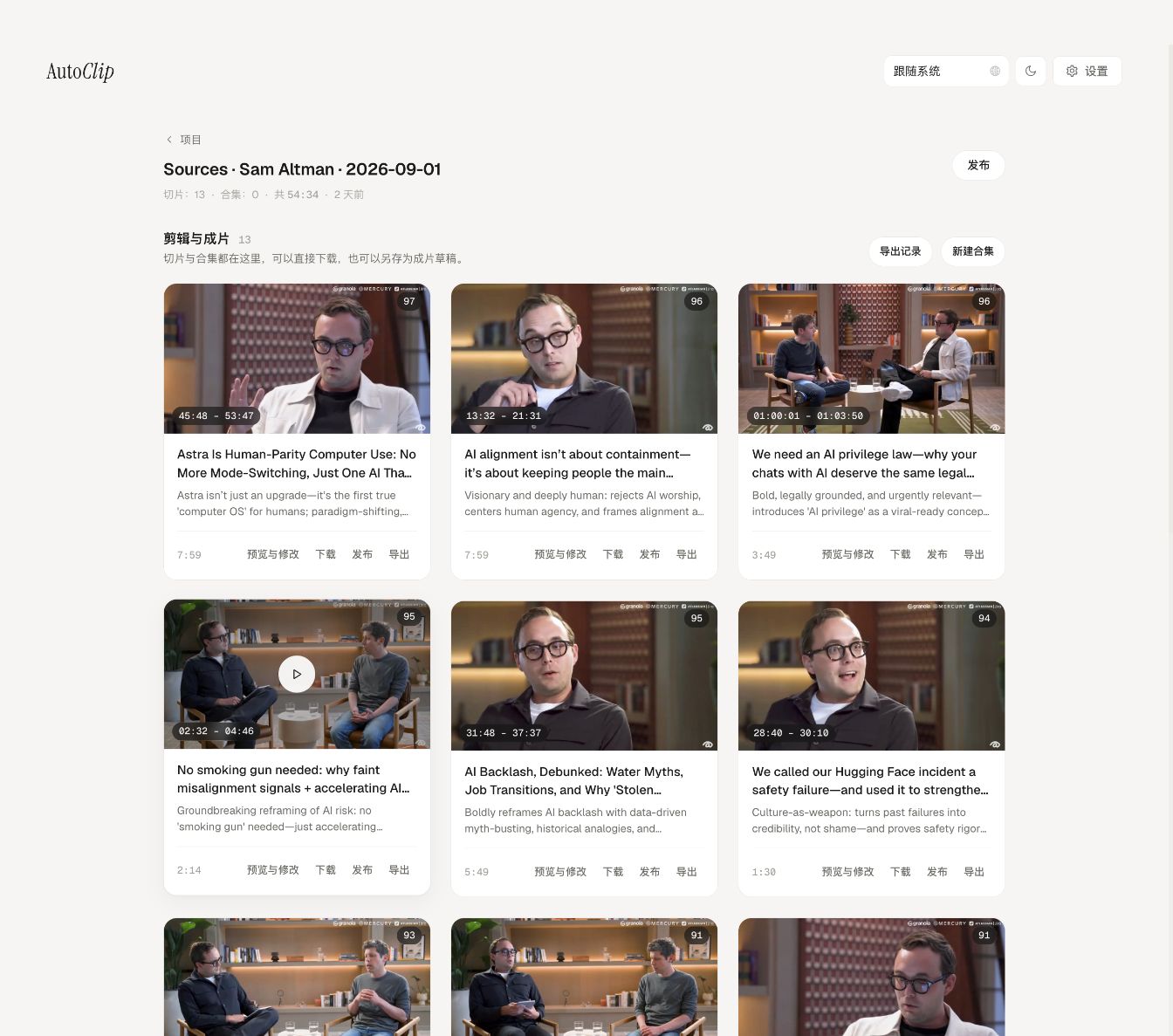
Clips Workspace — compare AI highlight scores, titles, and ready-to-export cards
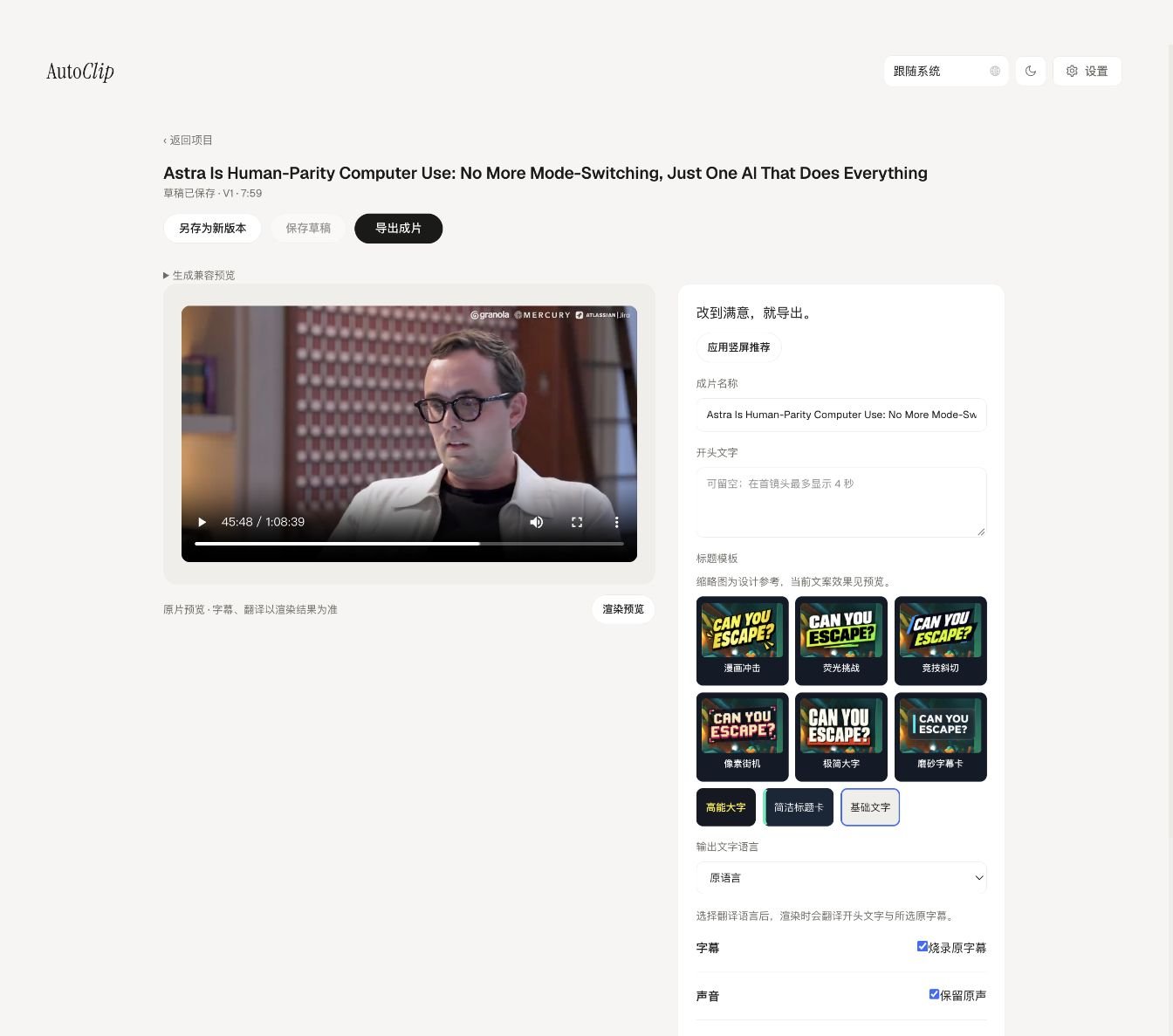
AutoClip Studio — refine trim boundaries, captions, framing, and template layers
Next Steps
- Give every episode a signature look with the AI Style Cloner & 34+ Templates.
- Generate auto covers and publish directly to Shorts, TikTok, and Reels in Packaging & Publishing.